
Creating a New Page
Adding a Page
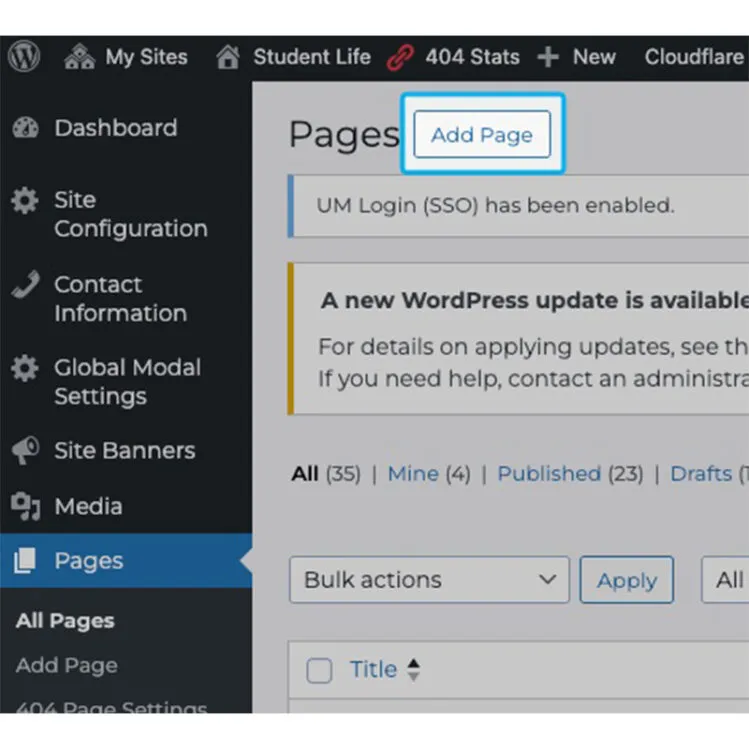
- Click on “Pages” in the left hand sidebar
- At the top, click “Add Page”
- This populates a blank page ready for content!
- Please note that you must fill in required fields in the page settings before the page can be published, but you can save it as a draft at any time!
For a guided walkthrough of how to add a page, please watch the following video:
Editing Slugs, Parent and SEO Fields
Editing Slugs
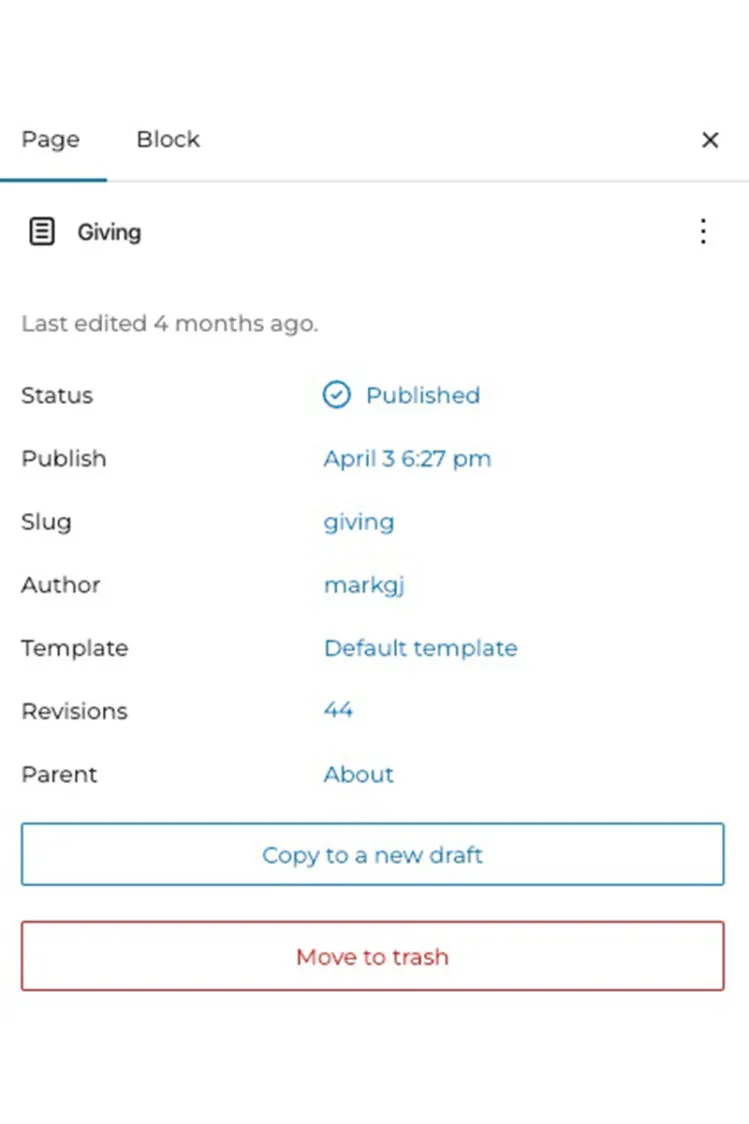
- In your page editing screen, make sure you are in the “Page Settings modal”.
- Click the blue link to the right of “slug”. Enter your desired slug. **Note: keep slugs descriptive but short
Assigning a Parent Page
- In your page editing screen, make sure you are in the “Page Settings modal”.
- Click the blue link to the right of “Parent”. From the dropdown, select your desired Parent page. **Note: this should follow your site navigation and hierarchy
For a guided walkthrough of how to edit slugs and parent pages, please watch the following video:
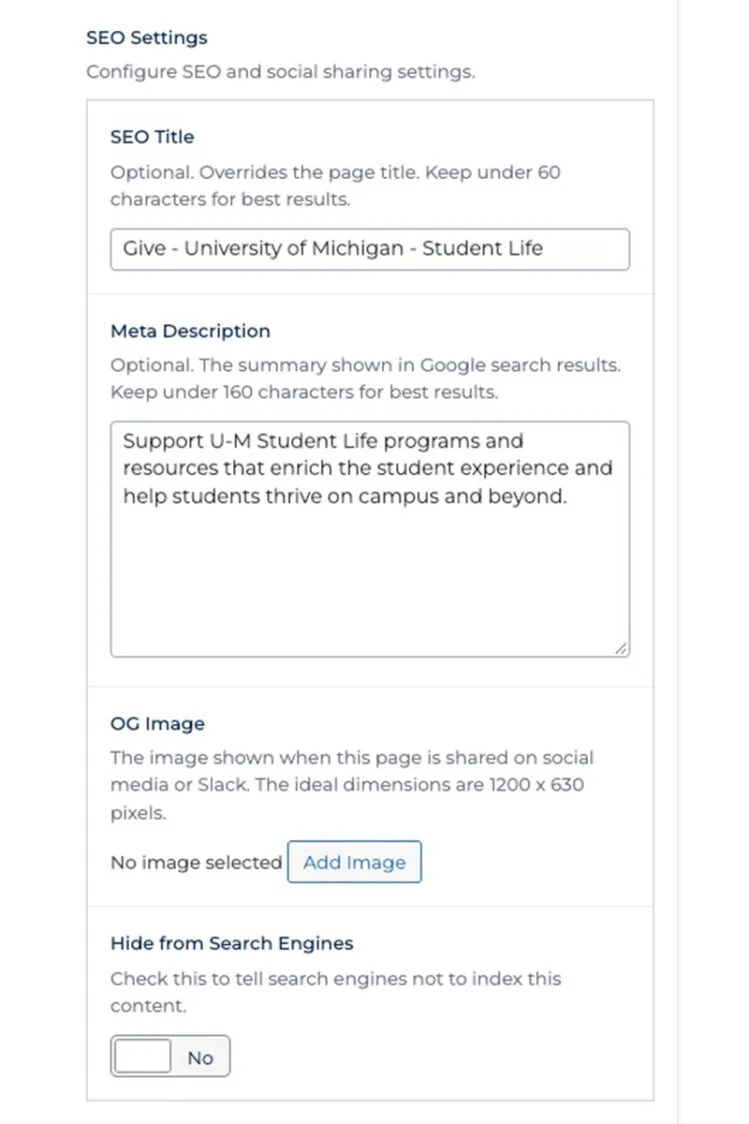
Editing SEO Fields
- In your page editing screen, make sure you are in the “Page Settings modal”.
- Scroll down in the sidebar and locate “SEO Settings”
- Enter your SEO Title and Meta Description
For a guided walkthrough of how to edit the SEO fields, please watch the following video:
Page Templates
We use two templates – default and sidebar.
Default: a normal article page
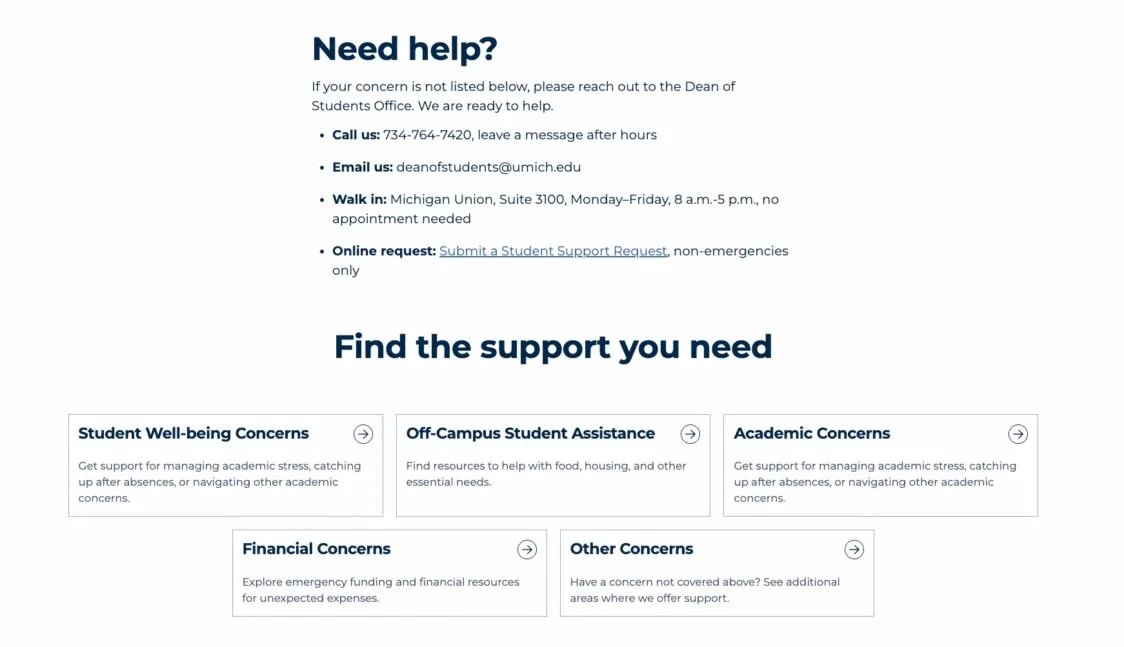
Sidebar: includes a left hand subnavigation sidebar. These are useful for pages that have a lot of content nested underneath them.
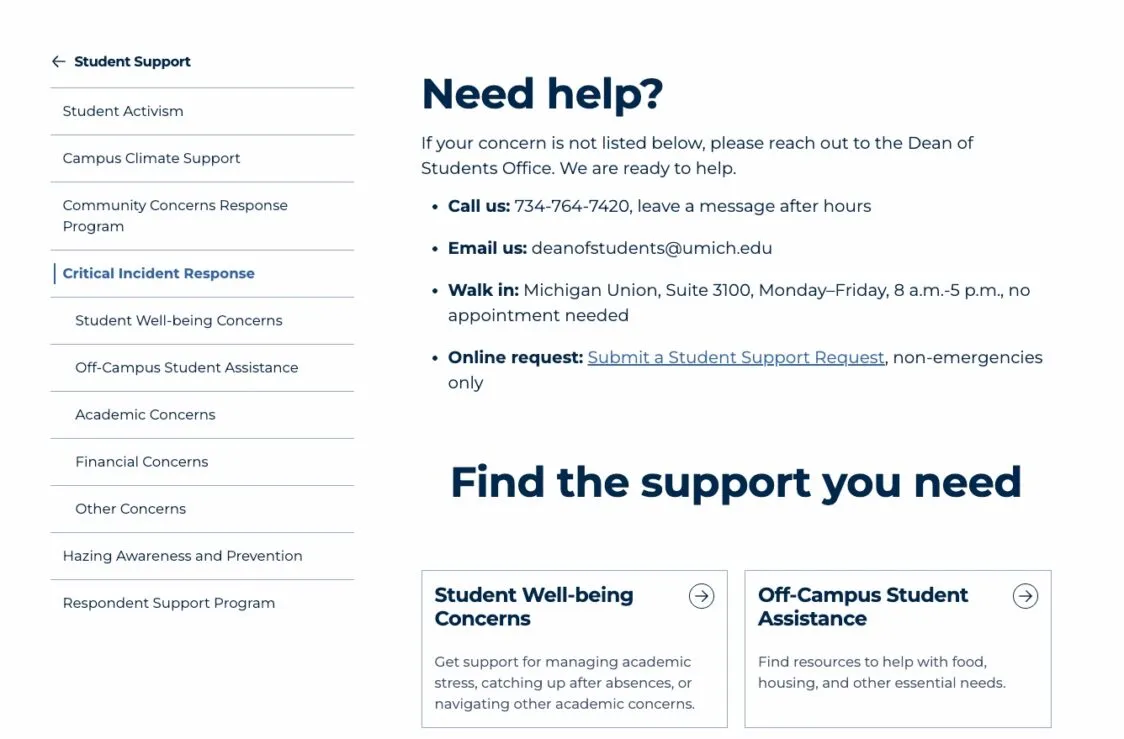
For a guided walkthrough of how to edit the template type, please watch the following video: