
Updating Live Pages
Once a page is published, the content may need to be updated. This guide walks you through how to make changes, without risking interruptions.
Typos & minor content tweaks
These types of changes can be done in real time on the published page. Upon saving, updates are instant.
Rewrite & Republish
For major content overhauls or updates that need approval, use “Rewrite and Republish”. This overwrites ANY previous content.
Making changes
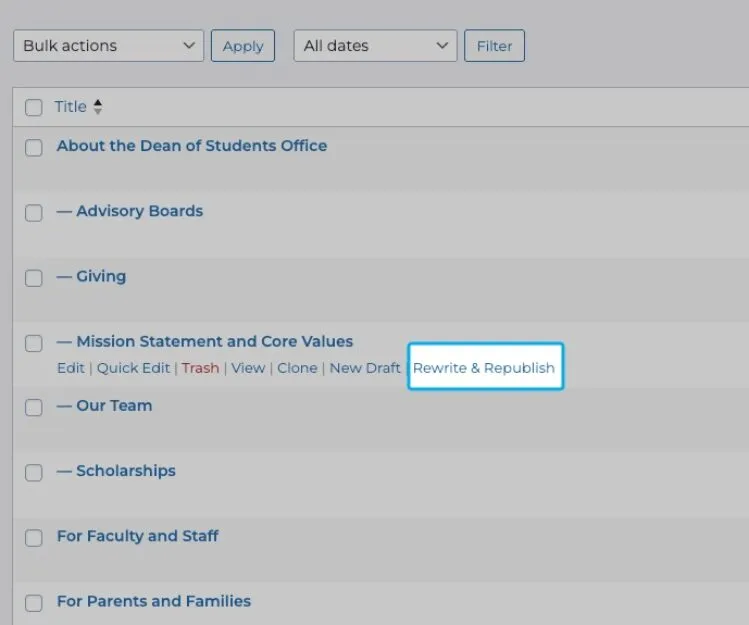
In the “Pages” interface, hover over the page you want to edit and click “Rewrite and Republish”. This opens a duplicate, editable page.
You will see a banner at the top of the page designating it as a Republish and the “Publish” button now says “Republish”
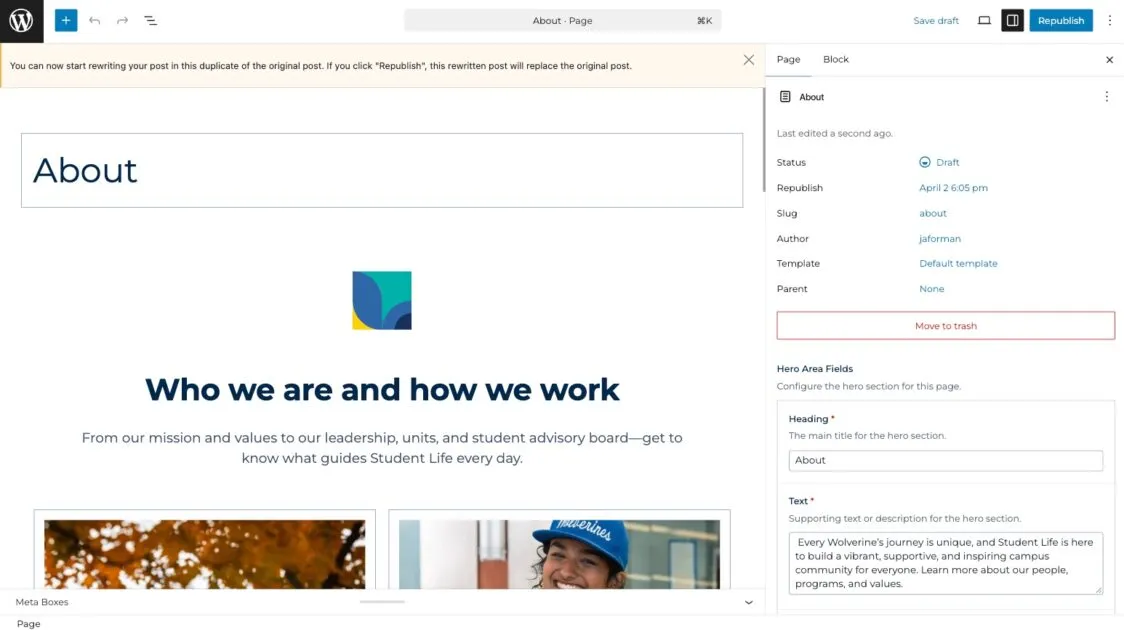
Make your changes, preview the page, and when you’re ready, click “Republish”. Note that this will overwrite the previous content.
Scheduling a Republish
- Verify that your time zone is set to EST (WordPress sidebar > Settings > General)
- On your draft page, select the blue date and time in the “Republish” field in the upper right.
- Select a future dated date and time
- Click “Schedule Republish”
Made a mistake?
Same session changes
If you want to undo some changes you’ve made in the same session, click the “undo” button in the utility bar
Restoring a previous version
If you’d like to restore a previous version, access the WordPress revision history
For a guided walkthrough of how to access the revision history and restore a previous version, watch this video: