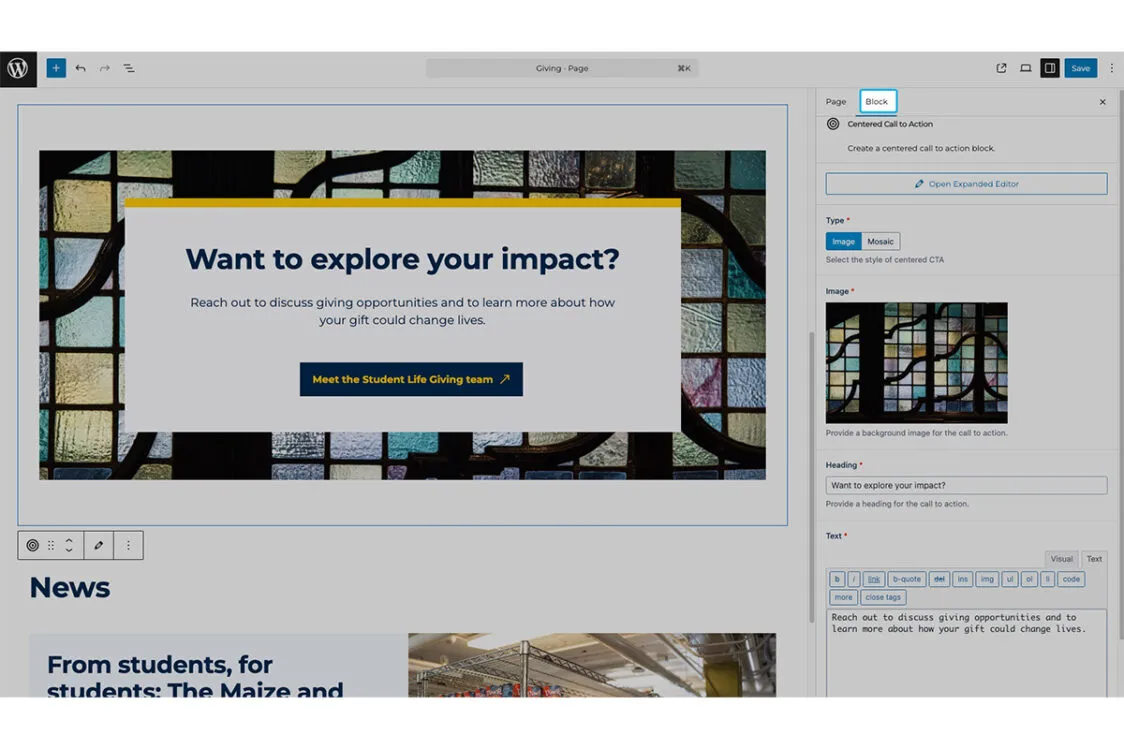
The WordPress Interface
Your first foray into the WordPress interface can be overwhelming. This guide will walk you through are a few key destinations and how to access all of the capabilities of WordPress.
The WordPress Sidebar
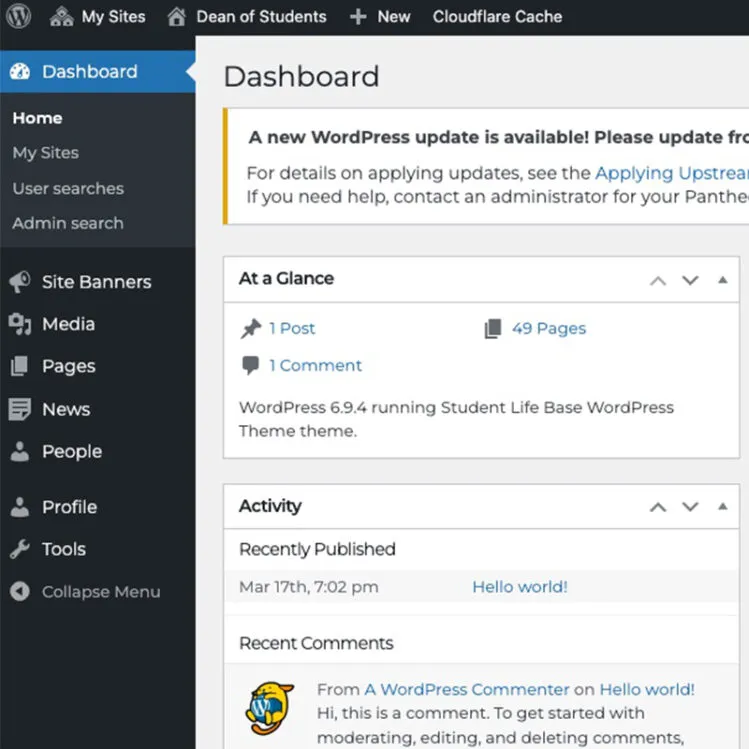
The first stop on your WordPress journey is getting familiar with the left hand sidebar. These are the most important items to become familiar with:
Site banners: Banners are persistent across your site. Use these to denote unit wide announcements.
Media: Where your images, documents and visual assets are stored.
Pages: All content pages of your site live here.
People: Pages for staff biographies.
News: News article content.
Page Editor Interface
The header utility bar
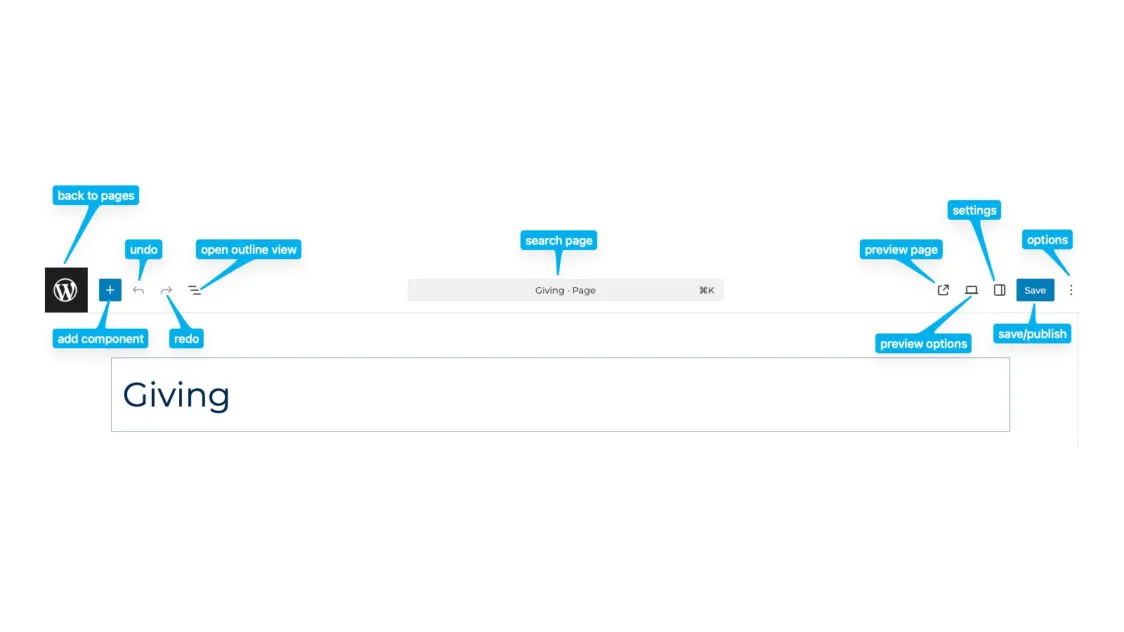
The WordPress utility bar houses many of the actions that can be taken in the page editing interface. These include navigation back to your dashboard, adding a component or block, preview, page settings and the publish button.
The Page Settings Sidebar
Page Settings
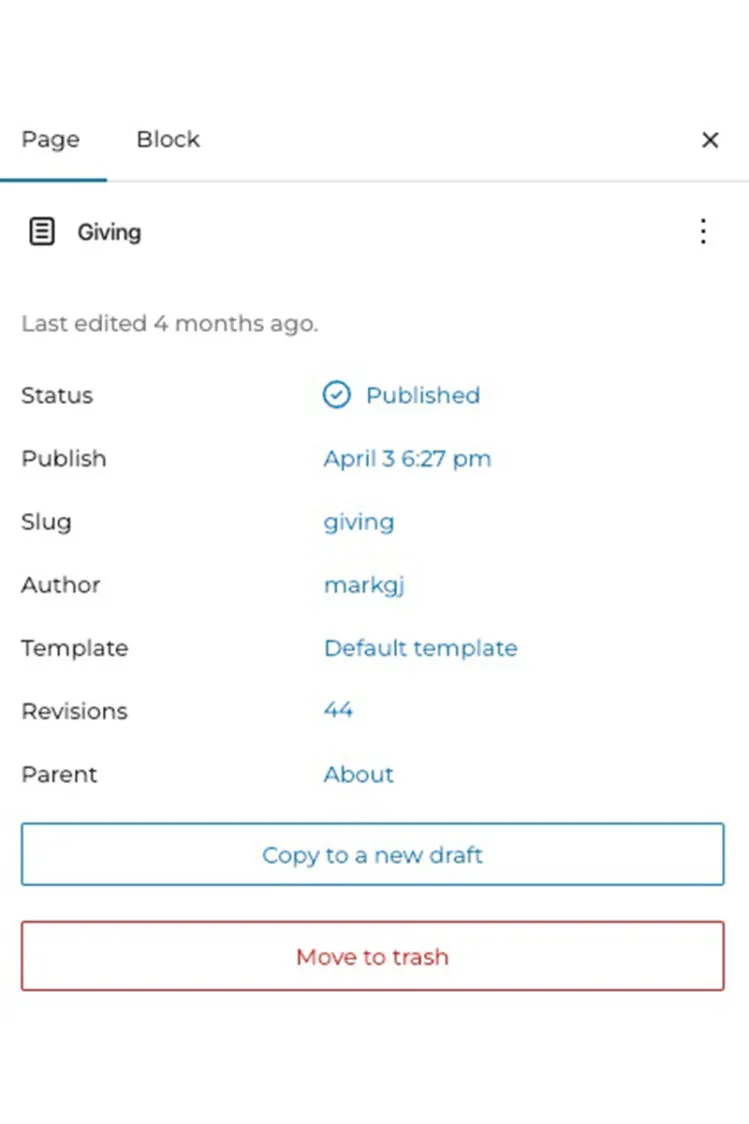
The page settings are accessible on the right hand side of the page editing interface. These include the following fields:
- Status – change the page status
- Publish – select the publish date and time. You can also select to publish the page automatically at a future date
- Slug – edit the page slug
- Author – the user that created the page
- Template – change the template type
- Revisions – access and view revision history
- Parent – the hierarchical page that the current page is nested within
For a guided walkthrough of editing slugs and parent pages please watch this video:
Hero Area Fields
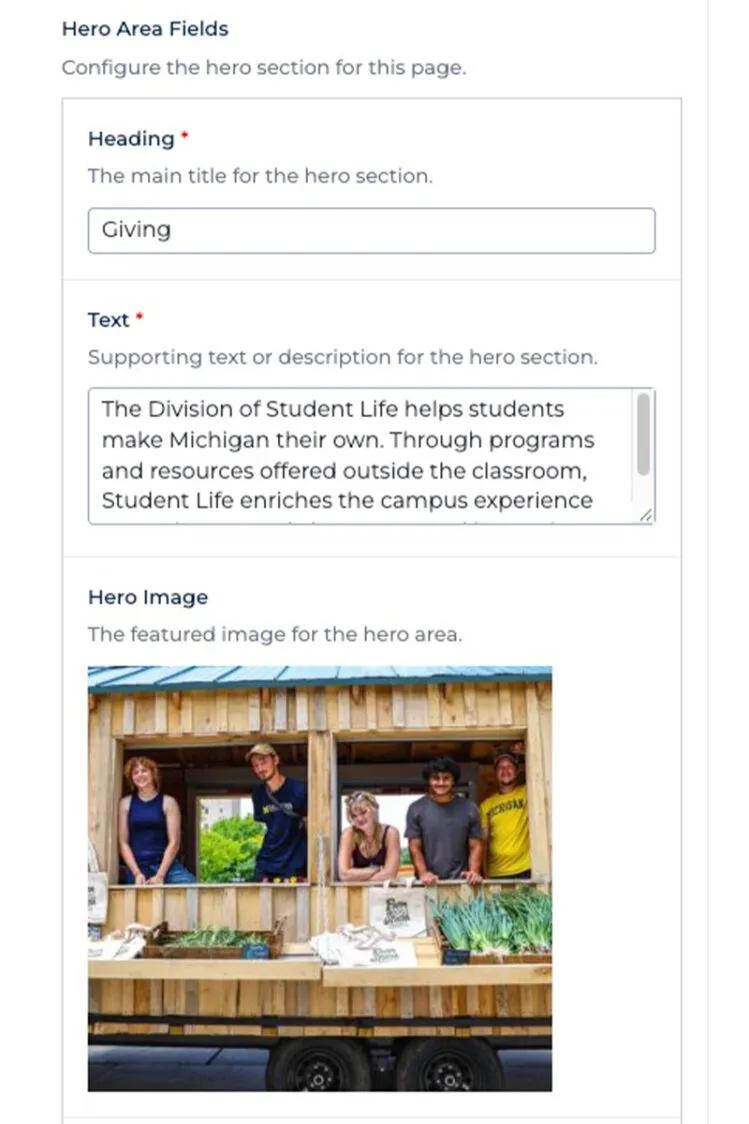
This section is where you add the main page title (H1), intro text and a hero image (optional). There are 5 types of hero areas:
- Simple
- Split
- Carousel
- Image
- Longform
Each hero area requires different fields and in some cases is only applicable to certain page types. For more information on how to use each hero area, head to “Using the different hero area components”
SEO settings
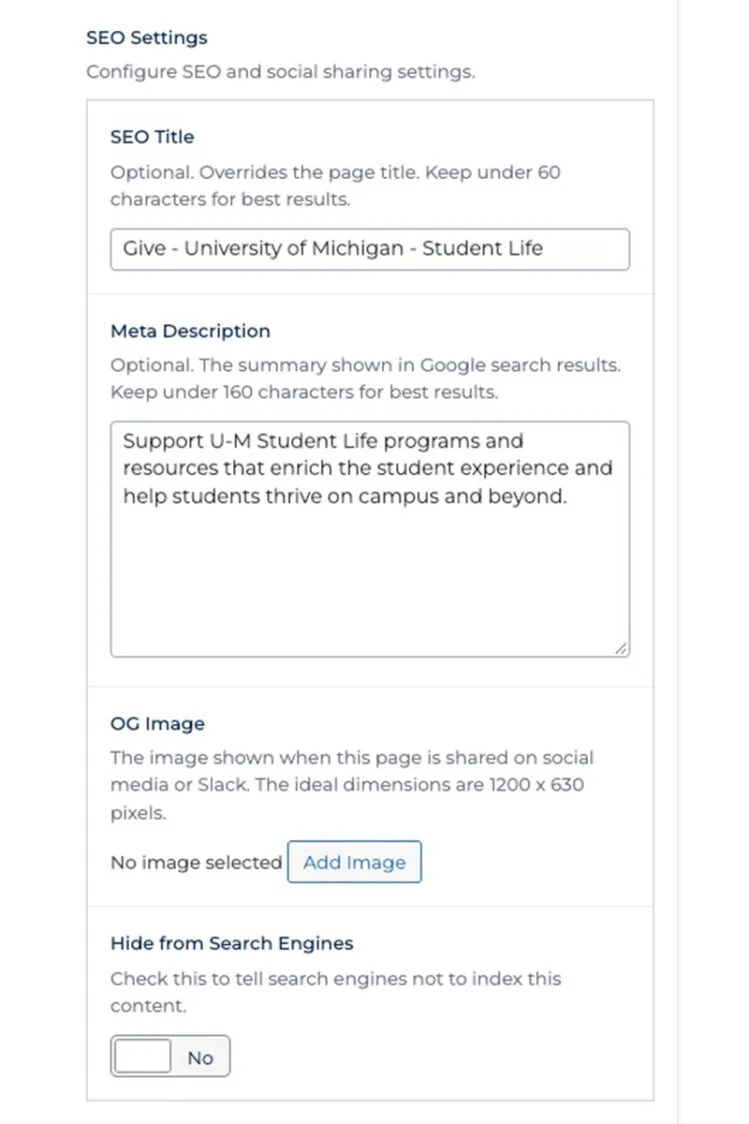
SEO Title: The clickable headline that appears on search engine results pages and browser tabs. 60 character max.
- Formatting the SEO Title: Page Title – Unit – University of Michigan
- U-M is also acceptable if it exceeds ideal character counts
- Example: Home – Dean of Students – University of Michigan
Meta Description: a short HTML tag that summarizes a webpage’s content for search engine results pages. 160 character max.
OG Image: An Open Graph image is the custom visual preview that appears when a webpage link is shared on social media platforms, messaging apps, or text previews. Best practice dimensions are 1200×630 pixels.
Hide from search engines: Use this for pages you do not want indexed by search engines i.e., internal only pages.
For a guided walkthrough of entering and editing SEO and Frontmatter fields, please watch this video:
The Block Sidebar
The block sidebar is where you will edit fields for all components. Please note that each component has different required fields.